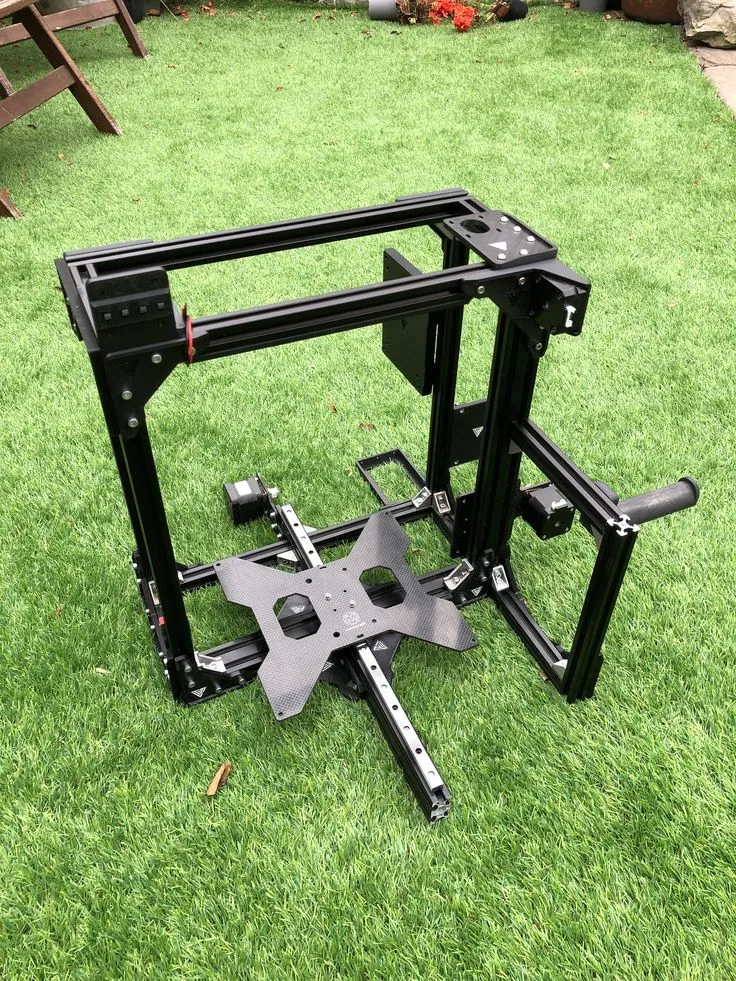
Common Tevo Tarantula Problems
The Tevo Tarantula, a popular DIY 3D printer, offers an accessible entry point into the world of additive manufacturing. However, like any machine, it can encounter various issues that can disrupt your printing process. From bed adhesion problems to layer shifting and overheating, understanding these common Tevo Tarantula problems is crucial for a smooth and successful printing experience. This guide will delve into the top five fixes you need to know to keep your Tevo Tarantula running optimally, ensuring you can bring your 3D designs to life without frustrating setbacks. We’ll cover solutions ranging from simple adjustments to more involved troubleshooting steps, providing you with the knowledge to diagnose and resolve the most frequent issues.
Bed Adhesion Issues
Bed adhesion is a fundamental aspect of 3D printing; without it, your print will detach from the build plate, leading to a failed print. One of the most prevalent Tevo Tarantula problems involves inadequate bed adhesion. Several factors can contribute to this, including an unlevel bed, a dirty print surface, and the wrong print settings. Addressing these issues can significantly improve the success rate of your prints, allowing the initial layers to firmly bond to the bed and build a solid foundation for your 3D model.
Leveling the Print Bed

Proper bed leveling is paramount for good bed adhesion. An uneven bed means the nozzle-to-bed distance varies across the print surface, resulting in some areas having too little or too much squish. The Tevo Tarantula typically uses manual bed leveling, which involves adjusting the bed’s four corners until the nozzle consistently touches the bed at the correct height. Use a piece of paper between the nozzle and the bed; you should feel slight resistance when moving the paper. Repeat this process until all corners are level, ensuring the first layer adheres correctly.
Cleaning the Print Bed
A clean print bed is essential for effective adhesion. Any residue, such as dust, fingerprints, or leftover filament, can compromise the initial layer’s grip. Regularly clean the print bed with isopropyl alcohol (IPA) and a clean cloth. IPA removes oils and other contaminants that hinder adhesion. For added adhesion, consider using a glue stick or painter’s tape, especially for materials like ABS that tend to warp. Always ensure the bed is cool when cleaning to avoid any potential hazards.
Using the Right Filament
The type of filament you use directly affects bed adhesion. PLA typically adheres well to a clean bed at a moderate temperature (around 60°C). ABS, on the other hand, requires a heated bed (around 110°C) and often benefits from using an adhesion promoter like ABS juice or a brim. Experiment with different bed temperatures and adhesion methods, such as using a raft or brim in your slicer settings, to optimize adhesion for the specific filament you are using. Choosing the right filament settings can significantly improve the chances of successful prints.
Extrusion Problems

Extrusion issues are another common problem that can cause inconsistencies in your 3D prints. Insufficient or inconsistent extrusion can result in gaps, weak layers, and overall print failure. Several factors can contribute to extrusion problems, including clogged nozzles, incorrect extruder settings, and filament-related issues. Diagnosing and resolving these issues is critical for producing high-quality prints. Careful attention to detail in these areas can make a significant difference in your results.
Identifying Extrusion Issues
Common signs of extrusion problems include under-extrusion (gaps in layers), over-extrusion (excessive filament), and inconsistent extrusion (irregularities in the print lines). Examine your prints closely for these signs. Under-extrusion may manifest as gaps between layers or weak structures, while over-extrusion might cause blobs or stringing. Inconsistent extrusion can create uneven surfaces. Comparing your print to a known good print can help you identify these issues more readily, making troubleshooting easier.
Adjusting Extruder Settings
Extruder settings, primarily the extrusion multiplier and temperature, greatly impact print quality. The extrusion multiplier controls how much filament the printer extrudes. If your prints show under-extrusion, slightly increase the multiplier (e.g., from 1.0 to 1.05). Conversely, decrease the multiplier if you see over-extrusion. The nozzle temperature is also critical. Too low, and the filament won’t melt correctly, leading to under-extrusion. Too high, and the filament might burn or cause excessive stringing. Experiment with temperature settings within the filament’s recommended range to find the optimal value.
Checking the Nozzle

A clogged nozzle can severely restrict or block filament flow. This is a frequent cause of extrusion problems. Regularly check your nozzle for clogs. You can perform a cold pull to remove debris. Heat the nozzle to your printing temperature, then manually push filament through. If the filament does not extrude smoothly or appears to curl, it indicates a clog. Using a nozzle cleaning needle or performing an atomic pull can resolve stubborn clogs. Regularly inspecting and cleaning the nozzle will improve print quality.
Layer Shifting
Layer shifting refers to a misalignment of layers during printing, where a portion of the print shifts horizontally. This can ruin the print’s structural integrity. Layer shifting is often caused by issues with the printer’s mechanical components or software settings. Identifying and correcting these problems is essential for maintaining the accuracy of your 3D models. Several factors can contribute to this, including loose belts, obstructions, and software glitches. Addressing these ensures precision in your prints.
Causes of Layer Shifting
Several factors can cause layer shifting in your Tevo Tarantula. One common cause is loose belts on the X and Y axes. These belts drive the movement of the print head and bed. If they are not tight enough, the print head may lose its position, causing the layers to shift. Obstructions in the path of the print head or bed can also lead to layer shifting. Check for any cables, wires, or other objects that may be interfering with the printer’s movement. Additionally, excessive print speeds and accelerations can cause the motors to skip steps, resulting in layer shifts.
Tightening Belts and Pulleys

Tightening the belts is a crucial step in preventing layer shifting. The belts should be taut but not overly tight; they should twang when plucked like a guitar string. Use a wrench to tighten the screws on the belt tensioners until the belts are appropriately tensioned. Also, ensure the pulleys are securely attached to the stepper motor shafts. Loose pulleys can slip, causing layer shifting. Tighten any set screws on the pulleys, ensuring they are firmly gripping the motor shafts. Periodic maintenance and belt adjustments will help maintain accuracy.
Checking Stepper Motor Drivers
Stepper motor drivers control the movement of the motors. If they are malfunctioning or not providing sufficient current to the motors, layer shifting can occur. Ensure the motor drivers are properly seated on the mainboard and are not overheating. Overheating can cause the drivers to malfunction, so consider adding heatsinks or improving airflow around the mainboard. Check the driver current settings, which should be within the recommended range for your stepper motors. Incorrect current can lead to missed steps and layer shifting.
Overheating Issues
Overheating can affect various printer components, leading to print failures and potential damage to your Tevo Tarantula. Excessive heat can cause filament to soften prematurely, resulting in jams and poor print quality. Furthermore, the hot end components, like the nozzle and heat break, are susceptible to overheating, which can lead to material degradation and other complications. Addressing overheating involves identifying the source of the heat and implementing strategies to dissipate it effectively. This helps maintain print quality and prevent component failure.
Causes of Overheating

Several factors can contribute to overheating in your Tevo Tarantula. A clogged nozzle can increase pressure and temperature in the hot end, leading to issues. Incorrect temperature settings, particularly setting the nozzle temperature too high, can also cause overheating. Insufficient cooling around the hot end and stepper motor drivers is another significant factor. Inadequate airflow prevents heat dissipation, leading to potential thermal runaway. Additionally, printing in a poorly ventilated area can trap heat and exacerbate overheating issues. Regular assessment can mitigate these issues.
Adjusting Temperature Settings
Carefully adjust your printer’s temperature settings to avoid overheating. Ensure the nozzle temperature is appropriate for the filament you are using. Refer to the filament manufacturer’s recommendations and start with the lower end of the suggested temperature range. Monitor the temperature during the print and make adjustments as needed. If you notice excessive stringing or oozing, the temperature might be too high. If the filament is not extruding smoothly, the temperature might be too low. Correct temperature settings are crucial to prevent overheating and ensure print quality.
Improving Cooling
Adequate cooling is essential for preventing overheating. Make sure the hot end cooling fan is functioning correctly and is positioned to direct airflow over the heat sink. If necessary, upgrade the cooling fan to a more powerful model. Improve the airflow around the stepper motor drivers. Consider adding heatsinks to the drivers or using a fan to circulate air around the mainboard. Good cooling prevents premature filament softening and helps maintain consistent print quality. Regular maintenance will help ensure optimal cooling.
Software and Firmware Problems

Software and firmware issues can significantly impact your 3D printing experience. Outdated firmware can cause compatibility problems and performance issues. Incorrect slicer settings can lead to print failures and inconsistencies. Resolving these problems involves updating firmware, optimizing slicer settings, and ensuring that the software is properly configured for your printer and filament. Addressing software and firmware issues ensures you can harness your printer’s full capabilities, delivering precision and efficiency.
Firmware Updates
Keeping your Tevo Tarantula’s firmware up-to-date is crucial for optimal performance and access to the latest features and bug fixes. Firmware updates often address known issues and improve printing performance. Visit the Tevo Tarantula’s manufacturer’s website or community forums to find the latest firmware version for your printer model. Follow the provided instructions to flash the new firmware onto your printer’s mainboard. Back up your current settings before updating to avoid losing your configurations. A firmware update helps you ensure your printer runs smoothly.
Slicer Settings Optimization
Slicer settings have a significant impact on print quality and success. Incorrect settings can lead to layer separation, poor bed adhesion, and other issues. Take the time to optimize your slicer settings. Experiment with different layer heights, print speeds, infill percentages, and temperatures to find settings that work best for your filament and print model. Use online resources and community forums to find recommended settings for the Tevo Tarantula. Regular adjustments and experimentation will improve print quality and your ability to create complex designs.
By understanding and addressing these top five Tevo Tarantula problems, you can significantly improve your 3D printing success rate. From ensuring proper bed adhesion and resolving extrusion issues to preventing layer shifting and managing overheating, these fixes will empower you to troubleshoot and maintain your printer effectively. With the knowledge and techniques outlined in this guide, you’ll be well-equipped to keep your Tevo Tarantula running smoothly and continue enjoying the exciting world of 3D printing. Regular maintenance and diligent troubleshooting will ensure you can tackle various printing challenges.